



If you are looking for a reliable way to communicate with friends, family, colleagues, or clients across the world, learning how to use Skype can be extremely beneficial. Skype has long been recognised as one of the most popular communication platforms, allowing users to send instant messages, make voice calls, participate in video conferences, and share files from virtually anywhere.
Whether you are using a computer, smartphone, or tablet, Skype provides a convenient way to stay connected without complicated setup procedures. Many beginners find the platform easy to navigate, but understanding all of its features can help you maximise its potential. This guide explains everything you need to know to use Skype, from creating an account and adding contacts to making calls and efficiently managing conversations.
What Is Skype and Why Is It Popular?
Skype is a communication application that enables people to connect via text messages, voice calls, and video calls over the internet. It became widely popular because it allowed users to communicate internationally at little or no cost compared to traditional phone services. Over the years, Skype expanded its features to include screen sharing, group video meetings, file transfers, and business communication tools.
One of the biggest advantages of Skype is its accessibility. Users can install the application on multiple devices and access their conversations from almost anywhere. The platform supports personal communication, remote work collaboration, online education, and virtual meetings. Understanding how to use Skype effectively can improve communication and help users maintain strong connections regardless of geographical distance.
How to Create a Skype Account
The initial step in mastering how to use Skype is setting up your personal account. The process is simple and usually takes only a few minutes. Begin by downloading the Skype application on your preferred device. Once the installation is complete, open the application and select the option to sign in or create a new account.
Skype uses a Microsoft account for authentication. If you already have a Microsoft account, you can sign in immediately using your existing credentials. New users can create an account by providing an email address, phone number, and password. After completing the registration process, verify your account and personalise your profile by adding your name and profile picture.
A complete profile helps other users recognise you more easily and improves the overall communication experience. Once your account is ready, you can start exploring Skype’s features and settings.
Setting Up Skype for the First Time
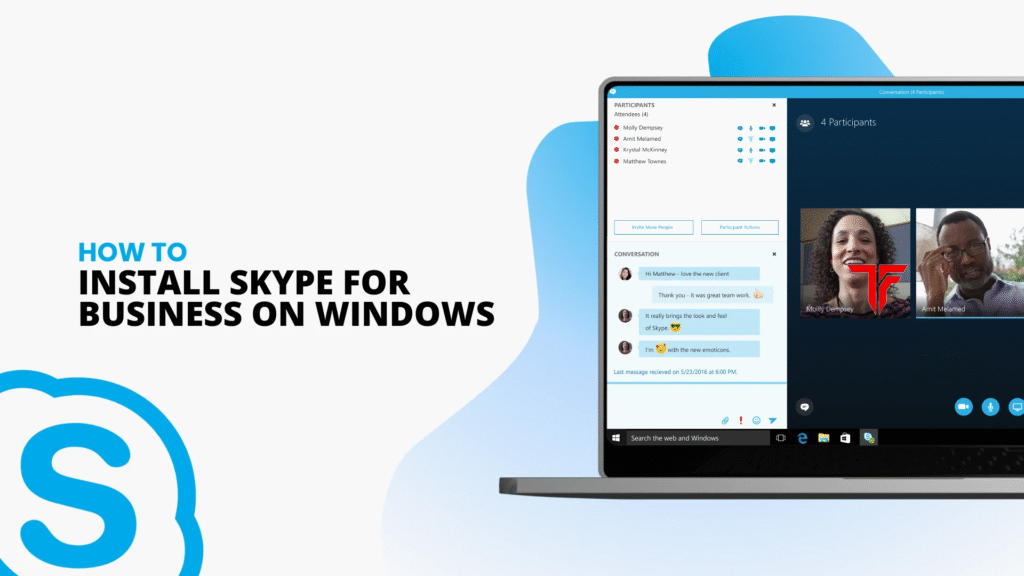
After creating an account, it is important to configure Skype properly. The application will guide you through a basic setup process that includes testing your microphone, speakers, and webcam. Ensuring that these devices function correctly is essential for smooth communication.
Users should also review privacy settings and notification preferences. These options allow you to control who can contact you and how alerts are delivered. Taking a few minutes to customise these settings can significantly improve your Skype experience and help prevent unnecessary interruptions during important conversations.
Additionally, updating your profile status can inform contacts whether you are available, busy, away, or offline. This feature helps others understand when it is appropriate to reach out to you.
How to Add Contacts on Skype
One of the most important aspects of understanding how to use Skype is learning how to add contacts. Without contacts, you cannot fully utilise the communication features available on the platform.
To add someone, use the search feature located within the application. Enter the person’s name, email address, phone number, or Skype username. Once the correct profile appears, select it and send a contact request. After the other person accepts your invitation, they will be added to your contact list.
Organising contacts can be helpful, especially for users who communicate with many people. Keeping an updated contact list makes it easier to initiate conversations quickly and maintain professional or personal relationships.
How to Send Messages Using Skype
Instant messaging is one of Skype’s most frequently used features. Once you have added contacts, you can open a conversation window and begin typing messages immediately. Skype supports both individual and group chats, making it suitable for personal discussions and team collaboration.
Users can send text messages, emojis, images, videos, documents, and other files directly through the chat interface. This versatility allows Skype to function as more than just a calling platform. Conversations are typically synchronised across devices, ensuring that users can continue chats regardless of which device they are currently using.
The messaging feature is particularly useful for quick communication when a voice or video call is not necessary.
How to Make Voice and Video Calls
A major reason people search for how to use Skype is to learn how to make calls. Skype offers both voice and video calling options. To start a call, select a contact from your list and choose either the voice call icon or the video call icon.
Voice calls are ideal when video is unnecessary, while video calls provide a more personal communication experience. Skype’s technology is designed to deliver clear audio and video quality, provided users have a stable internet connection.
Group calling is another valuable feature. Multiple participants can join the same conversation, making Skype useful for family gatherings, business meetings, online classes, and team discussions. Participants can communicate from different locations while remaining connected through a single call.
Using Skype for Professional Communication
Skype is not limited to personal use. A lot of professionals use it for work communication, online interviews, team collaboration, and virtual meetings. Features such as screen sharing, file transfers, and group conferencing make it an effective collaboration tool.
Screen sharing allows users to display presentations, reports, software demonstrations, or educational materials during meetings. This feature is particularly beneficial for trainers, educators, consultants, and remote teams.
Maintaining a professional profile, using clear communication practices, and ensuring reliable internet connectivity can help create productive Skype meetings and strengthen professional relationships.
Tips for Using Skype Effectively
To get the most value from Skype, users should follow several best practices. First, maintain a strong internet connection to reduce call interruptions and improve audio and video quality. Second, regularly update the application to access the latest features and security improvements.
Using a quality headset can significantly improve sound clarity during calls. Maintaining an organised contacts list and properly adjusting notification settings can further improve productivity. Additionally, scheduling meetings in advance and testing equipment before important conversations helps prevent technical difficulties.
By applying these simple strategies, users can enjoy a smoother and more efficient communication experience on Skype.
Conclusion
Learning how to use Skype is relatively simple, but mastering its features can greatly improve the way you communicate online. From creating an account and adding contacts to sending messages and participating in video conferences, Skype offers a comprehensive communication solution for both personal and professional use. Its user-friendly interface, cross-device compatibility, and diverse features make it a valuable platform for staying connected in today’s digital world. Whether you want to chat with friends, collaborate with colleagues, or conduct virtual meetings, understanding how to use Skype effectively can help you communicate with confidence and convenience.
FAQs
1. Is Skype free to use?
Yes, Skype is generally free for messaging, voice calls, and video calls between Skype users over the internet.
2. Do I need a Microsoft account to use Skype?
Yes, a Microsoft account is typically required to sign in and access Skype services.
3. Is Skype available for use on a mobile phone?
Yes, Skype is available for smartphones, tablets, laptops, and desktop computers.
4. How do I add someone on Skype?
You can search for a person using their name, email address, phone number, or Skype username and send them a contact request.
5. Can Skype be used for business meetings?
Yes, Skype supports group calls, screen sharing, file transfers, and other features that make it suitable for professional communication and virtual meetings.
READ MORE: thefundly
